Import Trial balance
Import sub-menu for trial balance
Under 'Import' confirm the following sub menu items:
Item | Details |
Import Trial Balance | This sub-menu item will allow for importing of trail balance that was drawn from the accounting system |
View Imports | This sub menu item allows for users to view all imported trail balances |
Importing a Trial balance
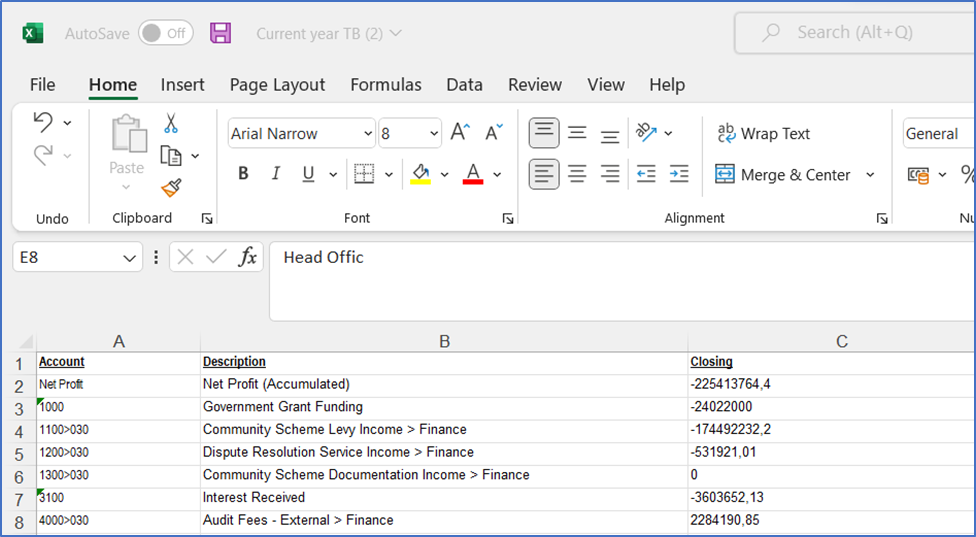
After the exporting the Trial balance from the accounting system into excel, confirm that the excel Trail Balance has at least has the columns: Unique Account number, Detail description, MSCOA Segments and Total value. All credit accounts should have minus in front of the total value.
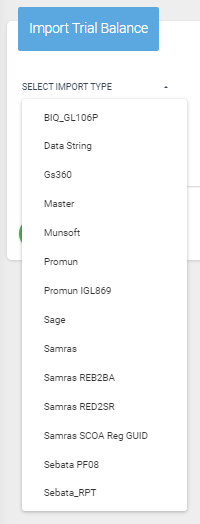
Pre-aligned formats have already been set for many mSCOA system exports of the applicable Trial Balance. The applicable version needs to be selected for which the upload follows:
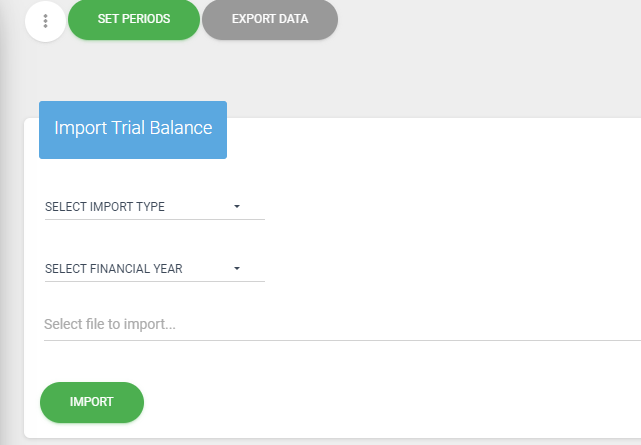
Upload of new Trial Balance
In order to upload a new Trial Balance, perform the following steps:
On the menu on the left, click on “Import”.
Click on “Import Trail Balance”. The below image should appear.
Click on “Select Import type” and select the financial system that is being used.
Click on “Select Financial Year” and select the relevant Year.
The last step is to click on select file to import and choose the TB that is to be imported.
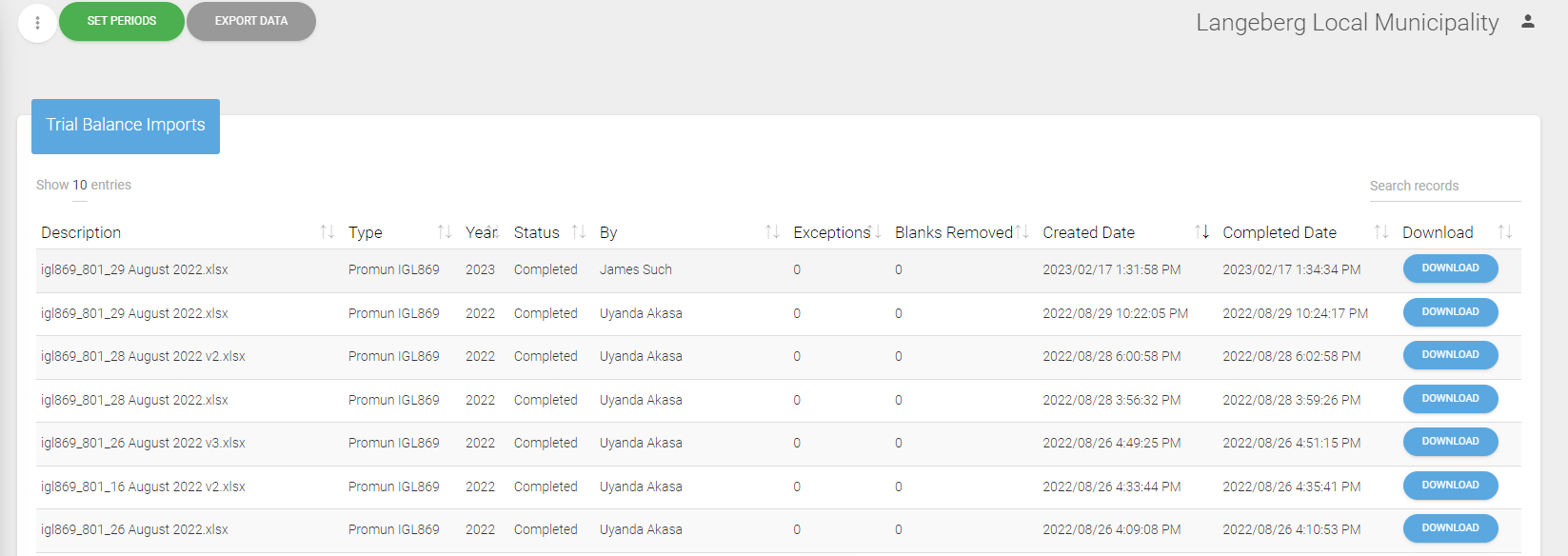
Viewing Imports
On the menu on the left, click on “Import”.
On the submenu, click on “View Imports”. – This will then view the list of prior imports.
For any import for which the status is indicated as “Completed”, click on the blue “Download” button to download and then open the Trial Balance.
This also provides for an audit trial in terms of users for the upload as well as version: